Your proxy.For the whole iPhone.
Every app goes through the SOCKS5 or HTTP proxy you choose.


- Price
- FreeNo in-app purchases
- Compatibility
- iOS 16+iPhone
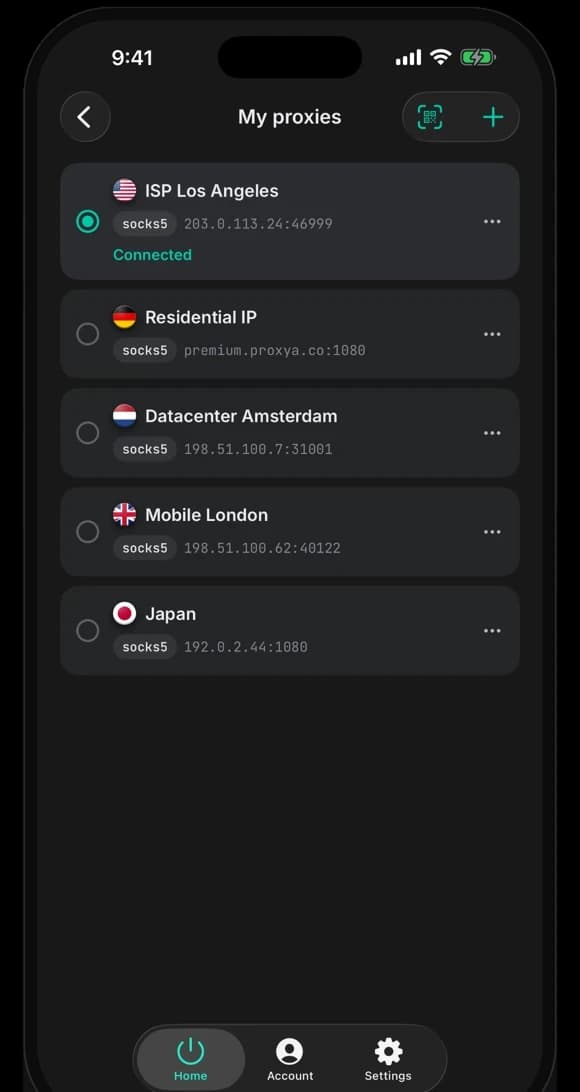
One tunnel for the whole phone. Proxies from a Proxya account connect in one tap. A proxy from any other provider is added by pasting a line or scanning a QR code.
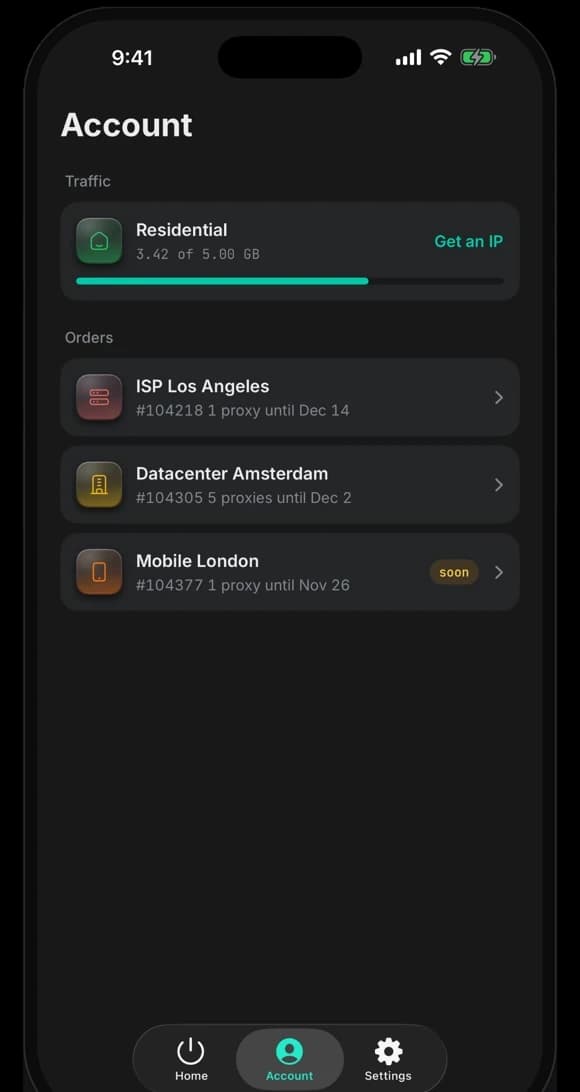
Account
Orders from your account. Connected in one tap.
After sign-in the app lists the ISP, datacenter and residential proxies of your Proxya account. An order connects in one tap, over SOCKS5 or HTTP.
Orders
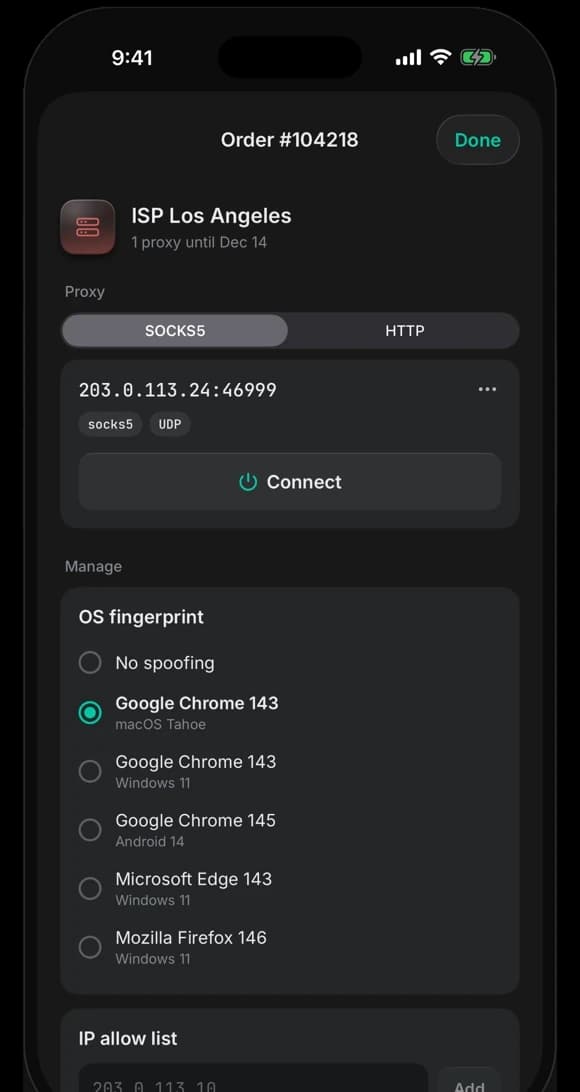
Order settings on the phone. Fingerprint, allow list and password.
For ISP and datacenter proxies the app changes the OS fingerprint, the IP allow list and the proxy password. The same settings are in the dashboard on proxya.co.
Masking
The handshake with the proxy and the site name are sent in two parts with a short pause. Masking is on by default. It is not encryption.
UDP and QUIC
UDP goes through the proxy when the proxy carries it, which video calls and HTTP/3 require. The app checks UDP on every connection.
DNS through the proxy
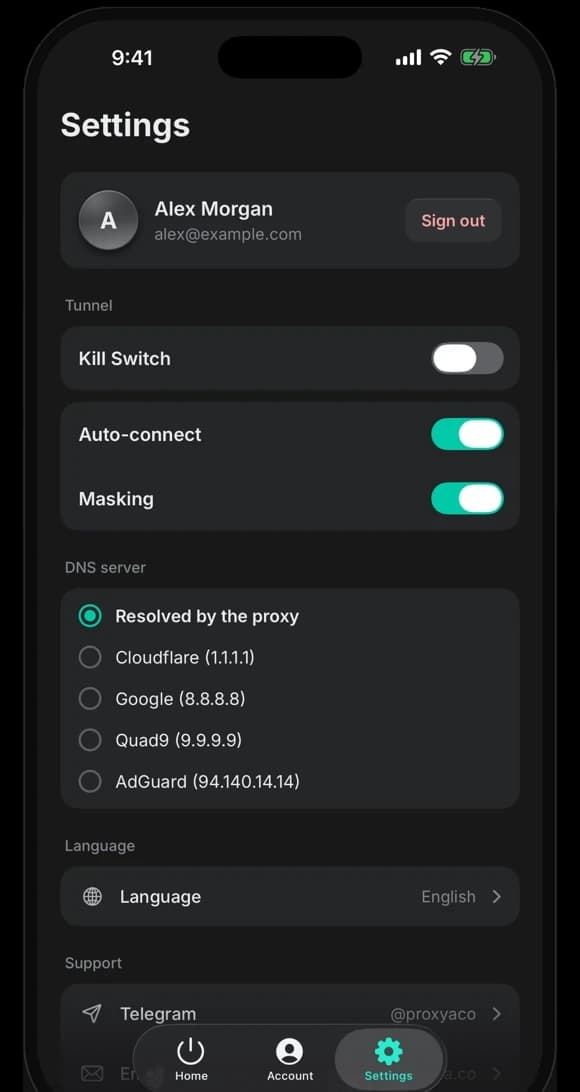
By default the proxy resolves names, and lookups stay inside the tunnel. Cloudflare, Google, Quad9 and AdGuard are available through the same proxy.
Residential
A residential IP in any country. Issued in the app.
The app issues a residential proxy from the traffic balance of your account. Choose the country, one address for 10 minutes to 16 hours or rotation, and UDP.
Residential proxies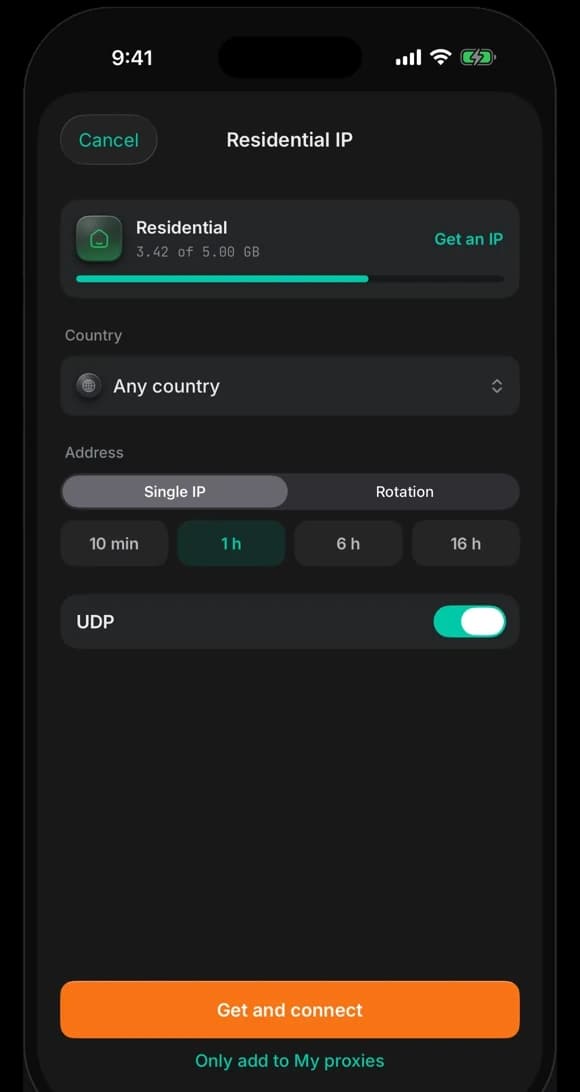
Kill Switch and auto-connect
Auto-connect restores the tunnel after a network change or a restart of the phone. Kill Switch blocks traffic outside the tunnel and is off by default.
Privacy
The app does not record the sites you open. Traffic goes from the phone directly to the proxy you selected. The tunnel does not log or inspect it.
No logs
The app does not store the websites visited, DNS queries, traffic content or connection history.
No trackers
The app contains no analytics, advertising or tracking SDKs.
Passwords in the Keychain
Proxies you add stay on the phone, and their passwords are kept in the iOS Keychain.
Three steps to connect.
Install the app
Download Proxya from the App Store. The app is free and has no purchases.
Add a proxy
Sign in to a Proxya account to see your orders, or tap + and paste a proxy line or scan its QR code.
Connect
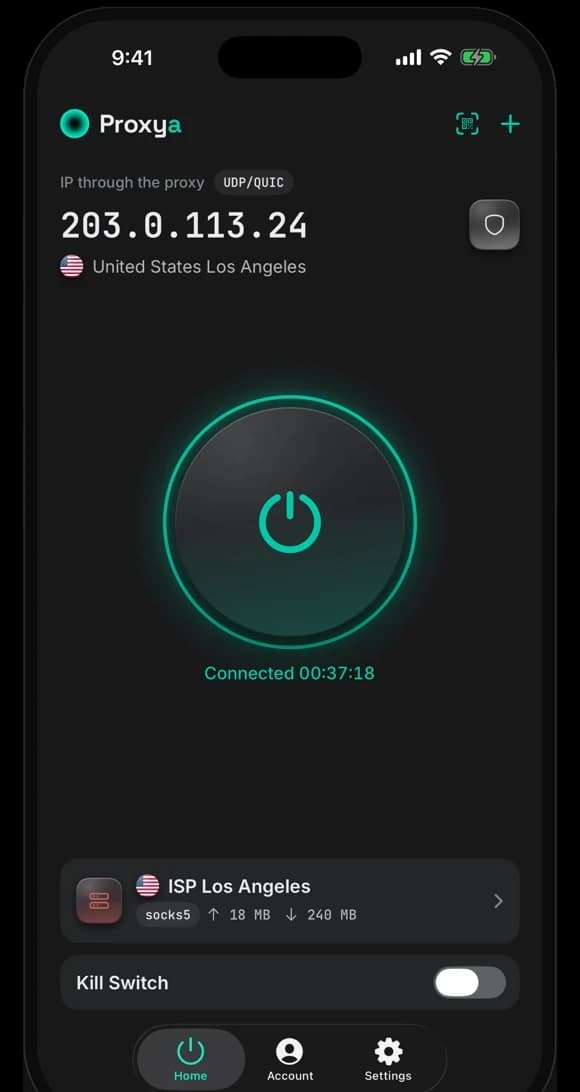
Tap the connect button and allow the VPN configuration once. The Home tab shows the IP address and country of the proxy.
Frequently Asked Questions
Everything you need to know about Proxya
Yes. The app is free and has no purchases. A proxy from any provider works without a Proxya account.
The app uses a local iOS VPN configuration to take the traffic of the phone into a tunnel, and the traffic leaves through your proxy. There is no Proxya server between the phone and the proxy.
No. The tunnel covers the whole phone, so browsers, messengers and games go through the proxy without any setup of their own.
Yes. The app accepts any SOCKS5 or HTTP proxy, with or without a password. A proxy is entered by hand, pasted as a line or scanned from a QR code.
Yes, when the proxy carries UDP. The app checks this on connection and marks the address on the Home tab with UDP/QUIC.
Yes. Proxya Desktop is available for Windows and macOS and works with the same proxies.
Limits
- The app is built for iPhone. There is no iPad version.
- Proxies are not sold in the app. Orders are placed on proxya.co.
- Sign-in uses the email and password of a Proxya account.
- The choice of a DNS server requires iOS 17 or later.
- UDP and QUIC work when the proxy carries UDP.
- The app is not available in the App Store of mainland China.
Proxies for the app
The app carries the traffic. The address a site sees belongs to the proxy.
Proxya for iPhone.Free in the App Store.
Free. Requires iOS 16 or later.


